TaskEngine / See the position, find the next action
Overview, progress & budget
Move from the portfolio view into the messages, tasks and financial records that need attention.
TaskEngine is the software; WCTK is the customer in these demo captures. Values and dates are historical examples, not live project results. The screenshots were taken at different times and should not be reconciled as one accounting snapshot.
Portfolio / Overview
Choose the question you want to answer
Select Overview in the main navigation. Use Comms for conversations across projects, or Details for project position and task-level exceptions.
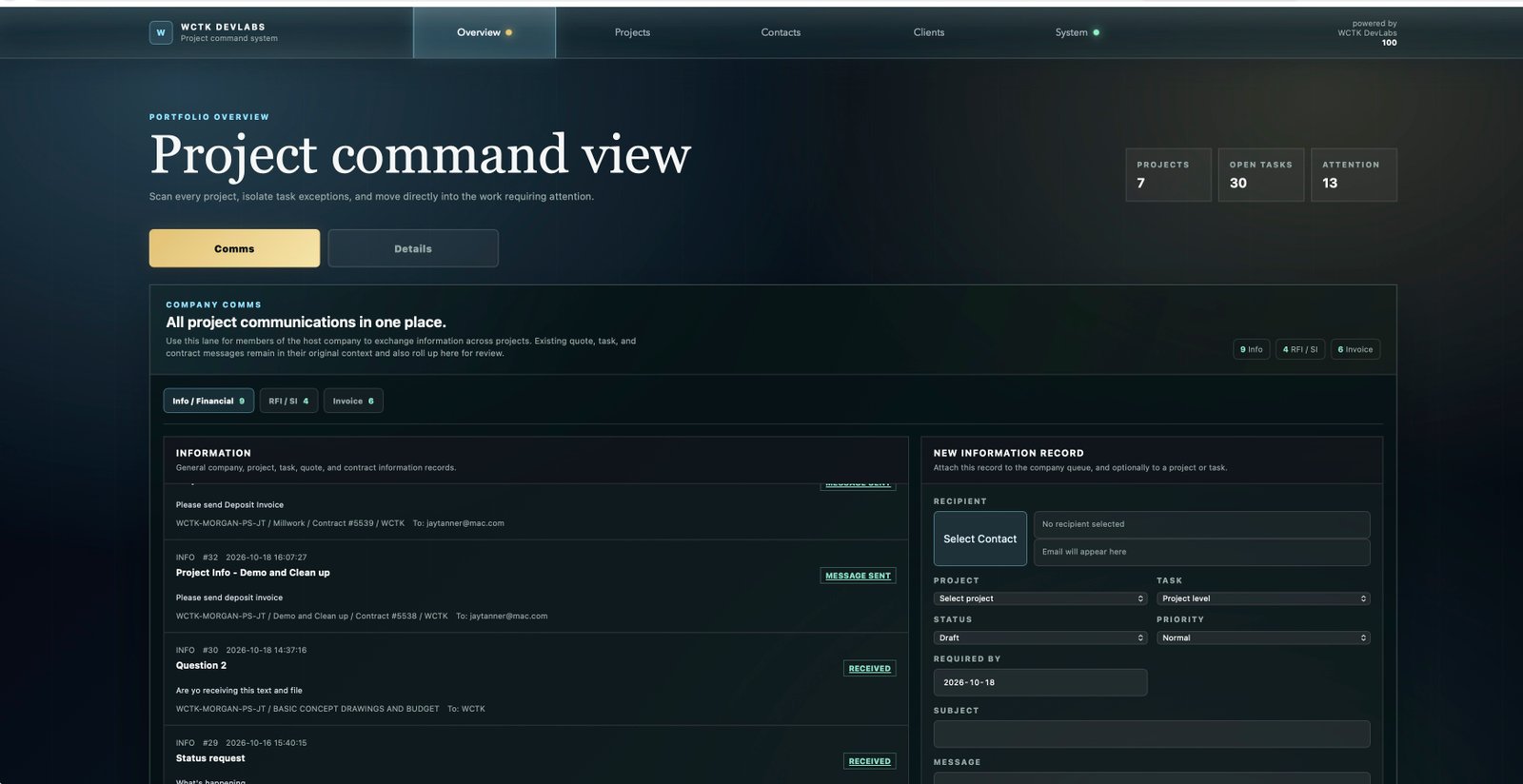
Comms: what needs a response?
Review the Info / Financial, RFI / SI and Invoice categories. Check the project and task context before responding or creating a record.
Details: where is the exception?
Scan each project's budget position, work and billing measures, then locate tasks that need closer review. Use Open Project or Open Task to investigate.
Counters help direct attention. A record total is not automatically an unread-message count, and an attention indicator is not a substitute for reviewing the underlying record.
Comms / Conversation history
Respond to the existing conversation
Select a message's status button in the queue to load its conversation on the right. Read the original message and replies, confirm the recipient and context, then enter your reply. Use New Message for a separate discussion.
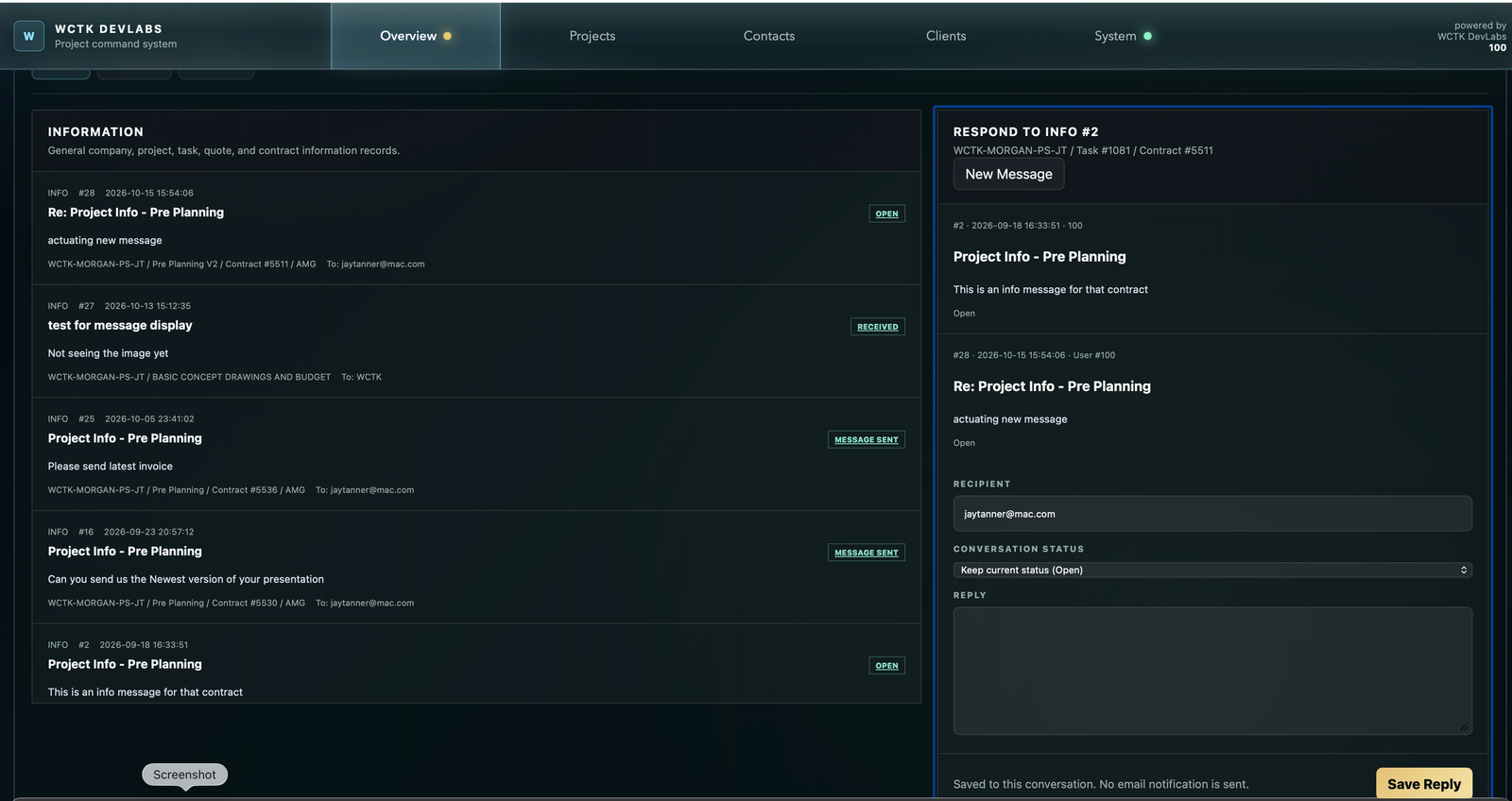
- Read the historyCheck the project, task, contract and previous messages so the response addresses the actual question.
- Reply deliberatelyVerify the recipient and conversation status. Keep the reply in this discussion rather than creating an unrelated duplicate.
- Check the resultRead the return message after saving. The example explicitly says no email notification is sent; saving a reply is not proof of email delivery.
Details / Project position
Read the numbers together
In Details, each project combines a budget summary, a time/work/billing comparison and its task rows. Start with the summary, then follow the exception down to its task.
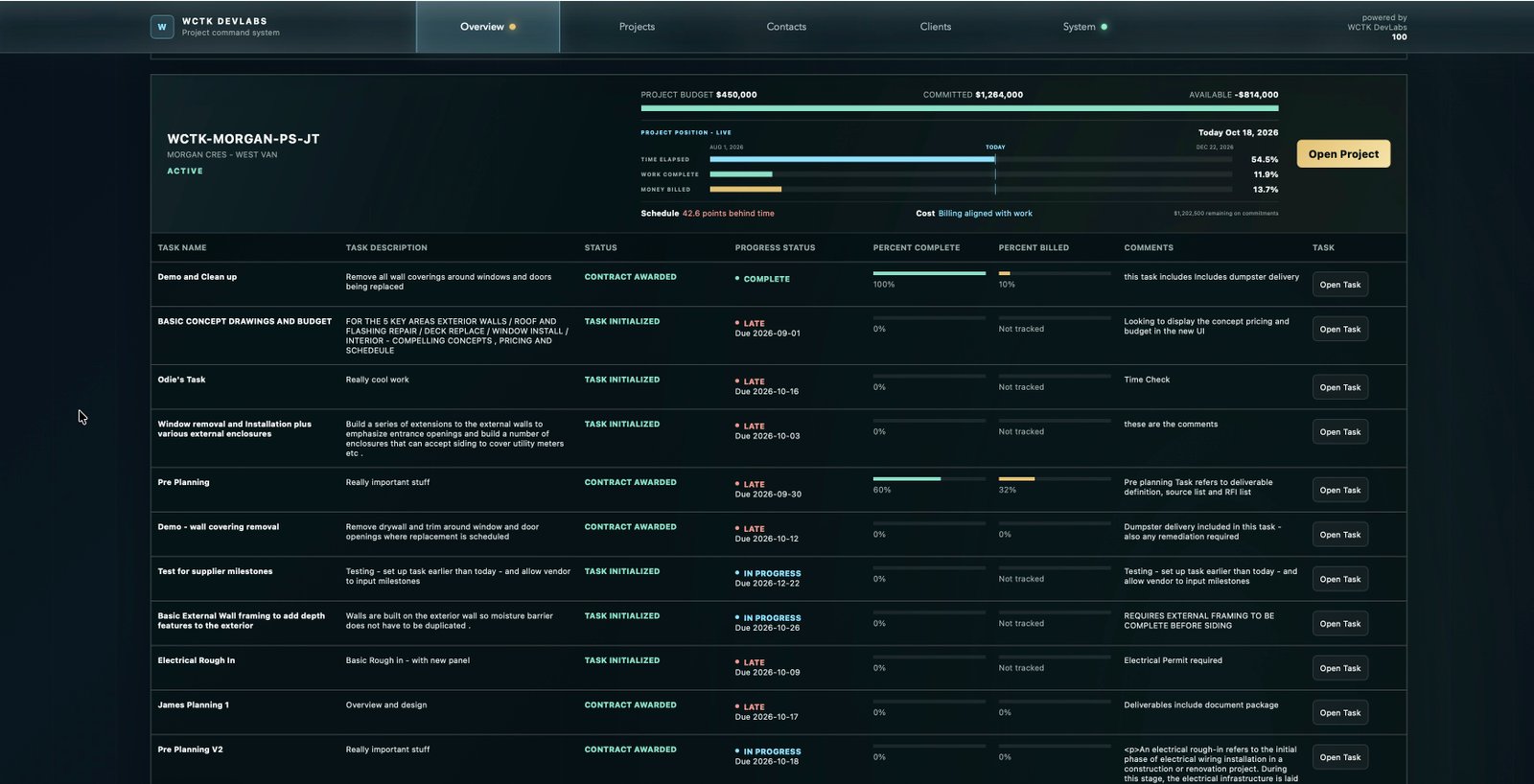
- Project budget
- The budget recorded for the project.
- Committed
- Overview sums each task's positive actual budget, falling back to its estimate where no positive actual budget is recorded. This total is not restricted to awarded contracts.
- Available
- Project budget minus that commitment total. A negative amount signals that the recorded commitments/estimates exceed the project budget, not that the bank account is overdrawn.
- Time elapsed
- The elapsed portion of the project window derived from task start and finish dates.
- Work complete
- An average of task completion percentages in this implementation, not a cost-weighted assessment. Missing task percentages contribute zero.
- Money billed
- Recorded task billing compared with the project budget in this Overview summary. Task-row billing percentages use the task's own value, so the denominators differ.
Separate the two statuses
Status describes the commercial stage, such as Task Initialized or Contract Awarded. Progress Status describes Not Started, In Progress, Complete or Late.
Read the orange warning
The task-row billing-gap warning appears when recorded percent complete is less than half of percent billed. For example, 20% complete versus 60% billed triggers it. It is a prompt to review, not a finding of incorrect billing.
A schedule gap in percentage points is not a forecast of days late. Likewise, “Billing aligned with work” is a comparison of recorded percentages, not a certification of invoices or site progress. Use the numeric labels as well as the bars.
Project workspace / Financial and progress views
Choose the right view for the question
Open the project to compare budget values, timing and progress. Each view uses a different measure; the same colour does not carry one universal meaning across all charts.
Budget: estimates versus recorded actual commitments
Select Budget in the project workspace. The financial view compares task estimates with recorded actual budget values. Select a task's chart lane to open the task record.
- Budget View
- Compare estimated and actual budget amounts by task. Here, “actual” means the recorded task budget/commitment field, not money paid.
- Variance
- Review the largest variances first. Variance is actual budget minus estimated budget; a positive value means the actual amount is above the estimate.
- Div Code / Supplier
- Organize task rows by construction division or assigned trade partner to locate the source of a difference.
- Cash Flow
- Group the timing assumption into monthly totals: 90% in the task start month and 10% in the finish month.
The Budget footer's Actual commitments total uses recorded actual amounts. Overview's Committed figure can also include estimated fallbacks, so the two totals need not match. Tasks with both budget amounts zero are omitted from the Budget chart.
A dedicated Budget-screen capture has not been supplied. These controls and calculations were checked against the local implementation; the next view illustrates the related expense-timing chart.
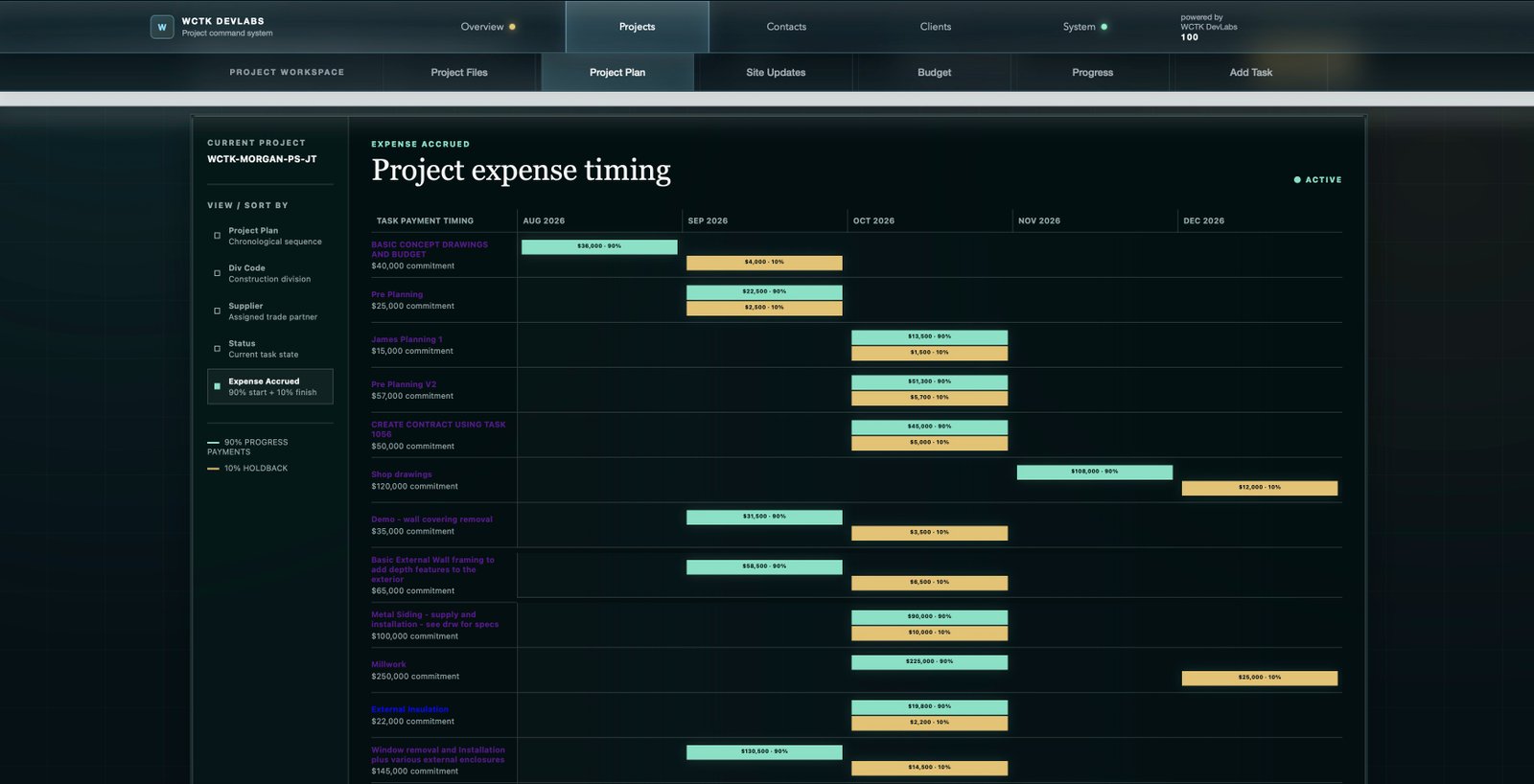
Locate the expected month
The mint amount represents 90% of the commitment in the start month; gold represents 10% in the finish month. For a $25,000 task, the split is $22,500 and $2,500.
Understand the assumption
This view uses the positive actual budget, or the estimate as a fallback. It is not a calculation from individually approved supplier milestones and does not instruct anyone to release payment.
The 90/10 split is this chart's planning convention, not a statement of contract terms or a legal holdback requirement. Check the actual agreement and approved records before acting on a payment.
Demo-data warning: this screenshot contains a zero start date and an implausible forecast drift of millions of days. Do not rely on that forecast. Review the source dates and forecast calculation before using the result; this tutorial does not repair the application.
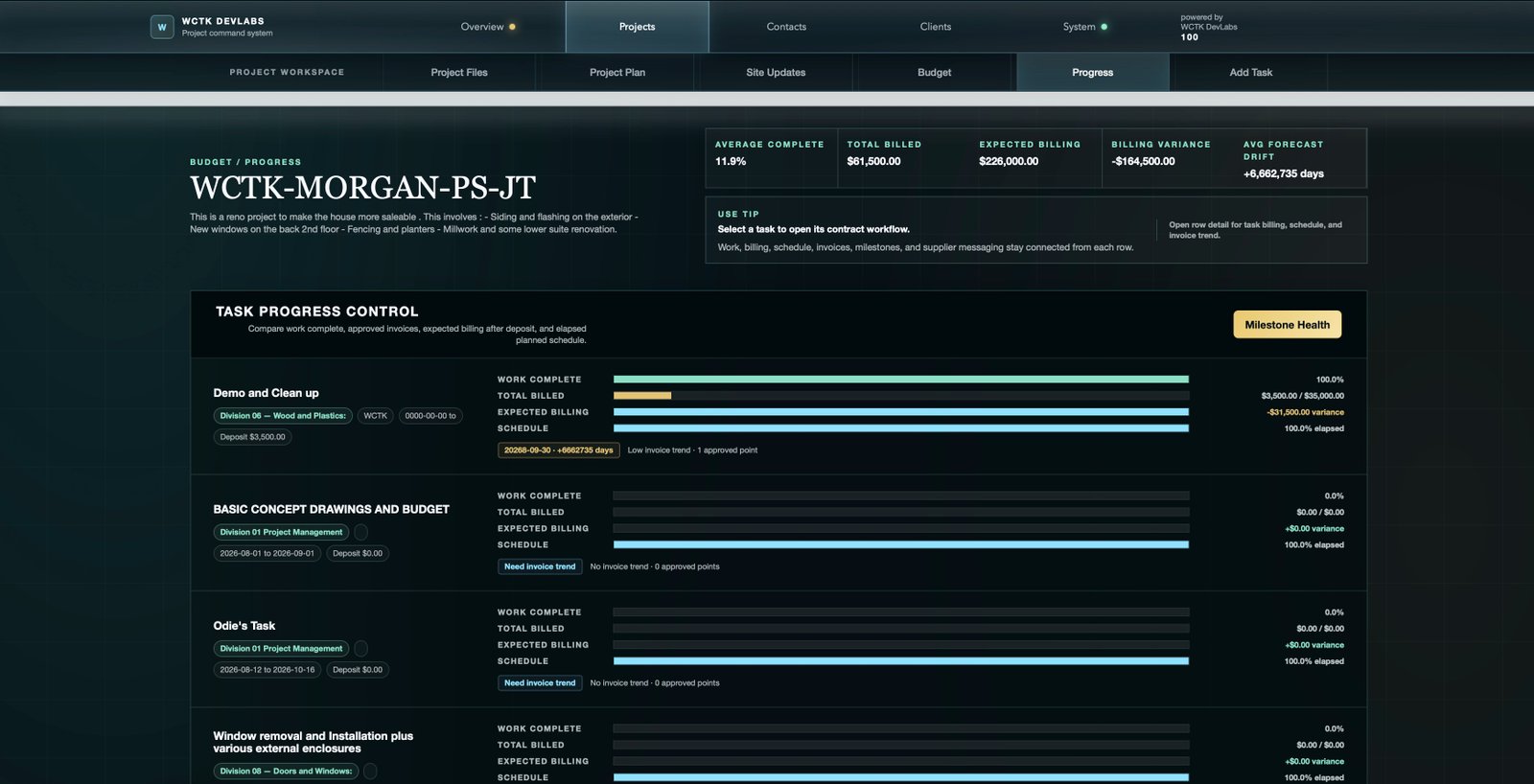
Select Progress in the project workspace. Each row compares Work Complete, Total Billed, Expected Billing and Schedule. The task name opens its contract workflow; row detail provides further billing, schedule and invoice-trend context.
- Expected billing
- The current calculation starts with the deposit, then applies elapsed schedule percentage to the remaining contract value. It is a schedule-based expectation, not an amount automatically approved or due.
- Billing variance
- Total billed minus expected billing. A negative number means recorded billing is below the expectation; it is not the unpaid invoice balance.
- Forecast drift
- The forecast finish compared with the planned finish, expressed in days. Check the invoice-trend confidence and approved-point count. Sparse or invalid input can make it unreliable.
- Milestone Health
- Open the separate milestone-review view when a checkpoint needs investigation. Progress charts do not replace the milestone approval workflow.
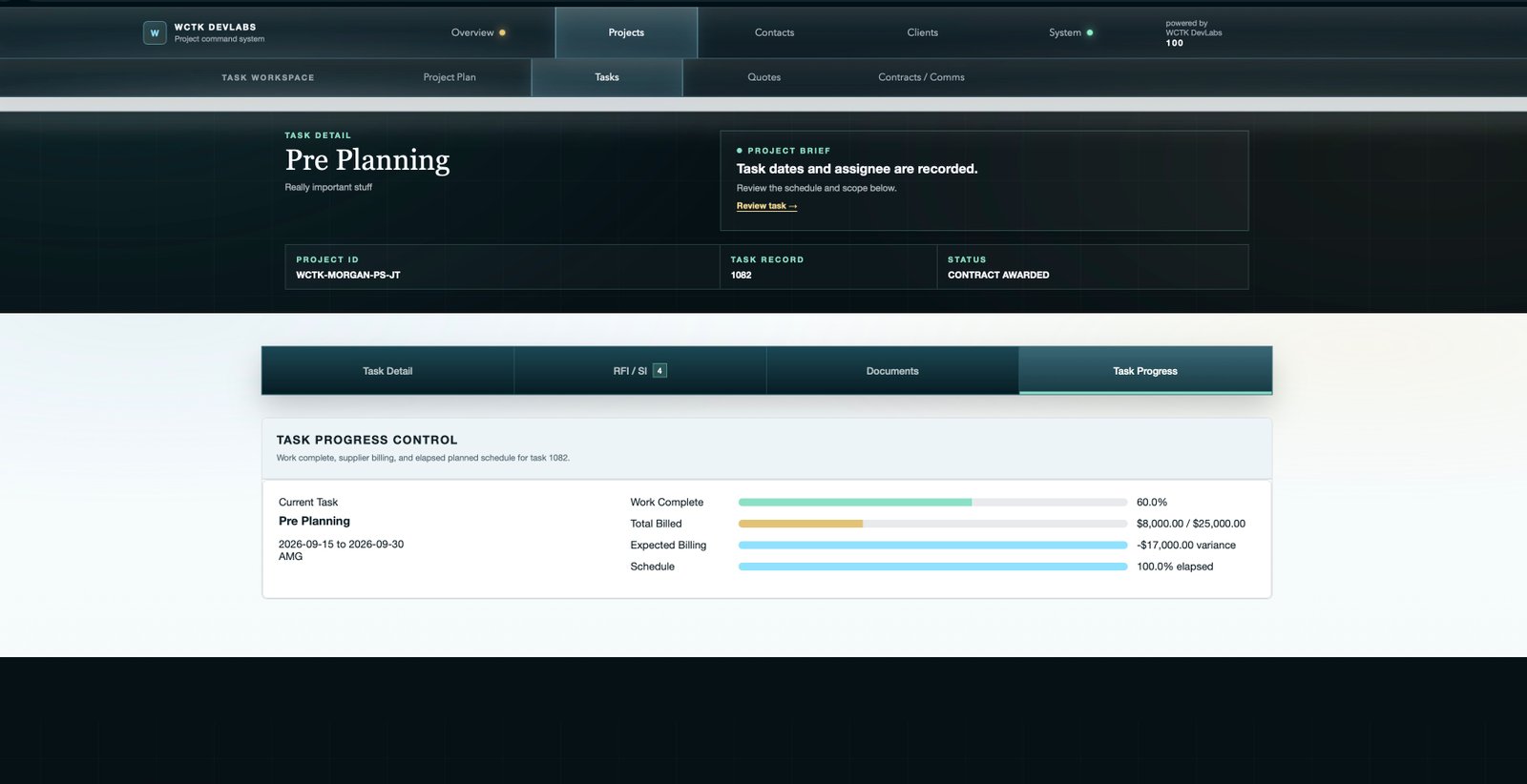
For Pre Planning, all planned time has elapsed while recorded completion is 60%. Review the remaining work and schedule. Billing is $8,000 against $25,000, or 32%; the displayed -$17,000 is the comparison with expected billing, not an instruction to pay $17,000.
Passing the planned finish date does not prove completion. Keep the dates, work-complete record and billing evidence current rather than adjusting one measure merely to make the bars match.
A practical review routine
Turn a signal into a useful action
- Scan OverviewReview communications and project position. Note a late task, budget shortfall, billing gap or unanswered question.
- Open the sourceUse Open Task or Open Project. Check dates, scope, budget values, invoices, milestones and the conversation behind the signal.
- Record the next stepResolve incorrect data or ask the responsible person a specific question. Return to the overview after the underlying record is updated.
When a value looks wrong
Check missing or zero dates, the selected project/task, estimates versus actual commitments and duplicate or outdated records. An extreme forecast needs investigation, not a confident explanation.
When a value is missing
Not tracked does not mean zero. Verify whether the task has a usable value and billing record before comparing percentages.
Keep the measures distinct
A quick reference
- Budget
- The recorded allowance against which commitments are compared.
- Commitment
- A recorded task value; some summaries use an estimated fallback. Read the view's definition.
- Billed
- The recorded billing amount, not proof of cash paid.
- Expected billing
- A deposit-and-schedule-based comparison, not an approved invoice.
- Cash-flow forecast
- In these financial charts, a 90% start-month / 10% finish-month timing assumption.
- Progress status
- Work/schedule state, separate from the commercial status and from percent billed.
- Forecast confidence
- A reason to examine the supporting data, not a guarantee of the finish date.
Try it in the demo
Find project 1118 in Overview, compare budget with commitments, then open Pre Planning. Explain its work, billing and schedule measures separately before deciding what needs follow-up.
Back to the beginning ↑