TaskEngine / From scope to commitment
Quotes, portal & contracts
Prepare a clear request, collect the supplier's response and carry the agreed work into contract review.
TaskEngine is the software; WCTK is the customer shown in these demo screenshots. The captures show different records and moments in the workflow, not one continuous transaction. This guide does not send requests, award contracts or approve payments.
Office / Task workspace
Prepare the quote request
Open project 1118, choose Pre Planning and select Quotes. Start on New Request. Confirm the project, task and scope before completing the supplier and request fields further down the form.
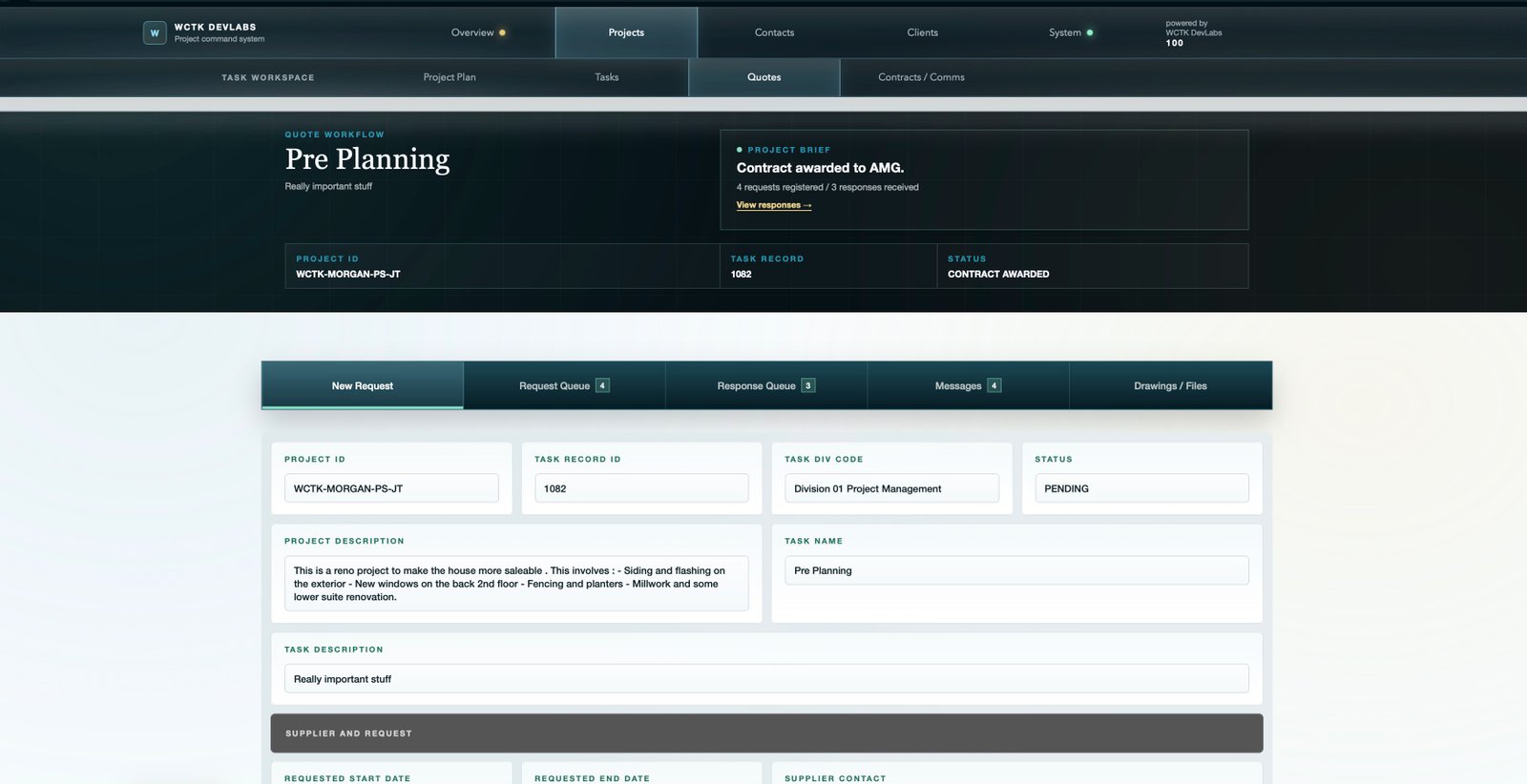
- Confirm the scopeCheck the task name, description and division. Make the work package clear before inviting a price.
- Confirm the recipientReview the supplier contact, requested dates and request message in the form.
- Check the documentsEnsure the supplier has the plans and supporting files needed to quote the same scope.
A task can already say Contract Awarded while a new request form says Pending. These labels belong to different records. Check the task and quote identifiers rather than treating every status as interchangeable.
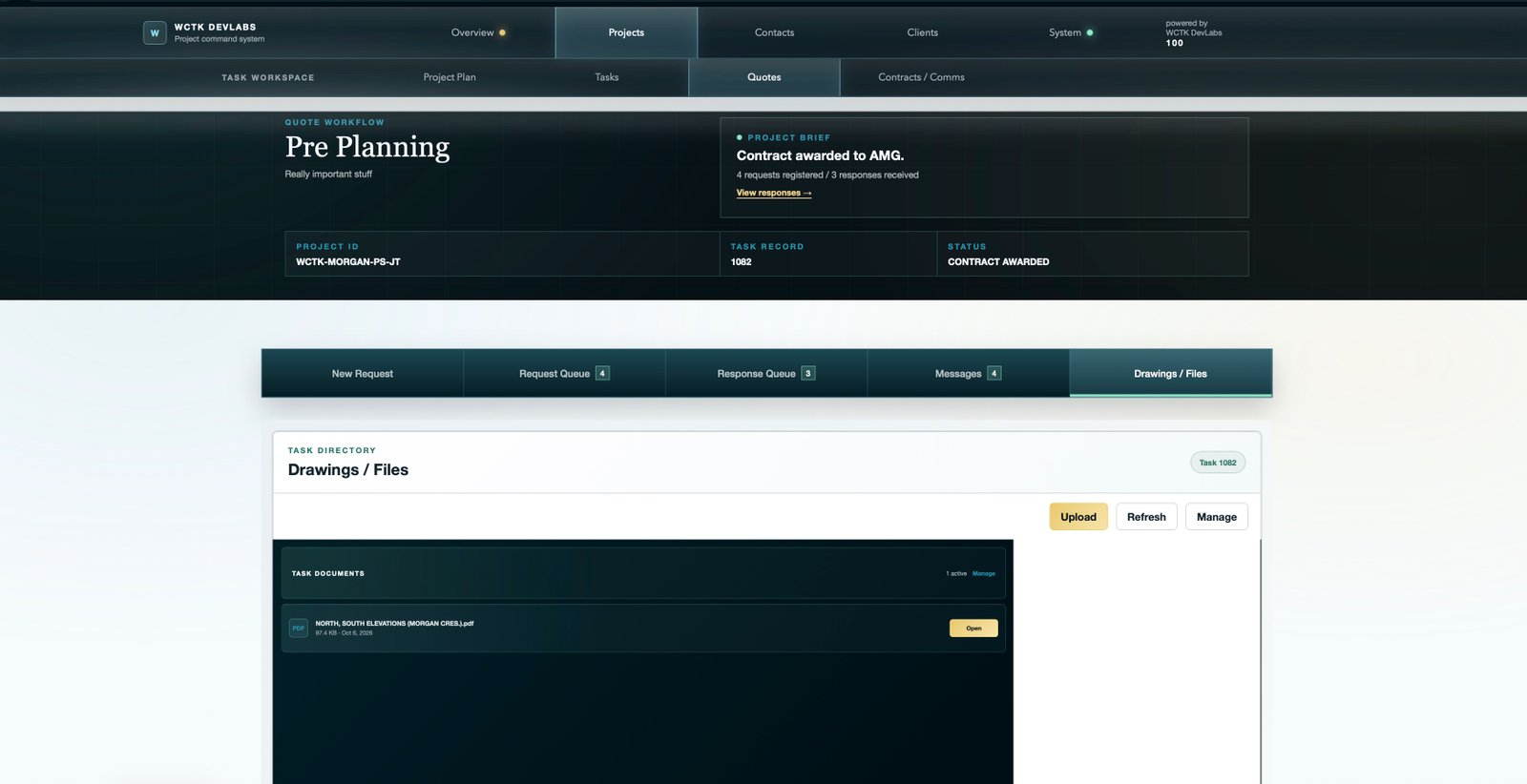
Use the right library
Project-wide reference material belongs in Project Documents. Scope-specific drawings and attachments belong in Task Documents. Avoid leaving competing revisions without a clear current version.
Check the result
After submitting a request, read the returned status. A registered request and a successfully delivered email are different things; investigate a delivery failure before assuming the supplier received it.
Office / Requests and messages
Track the invitation and clarify the work
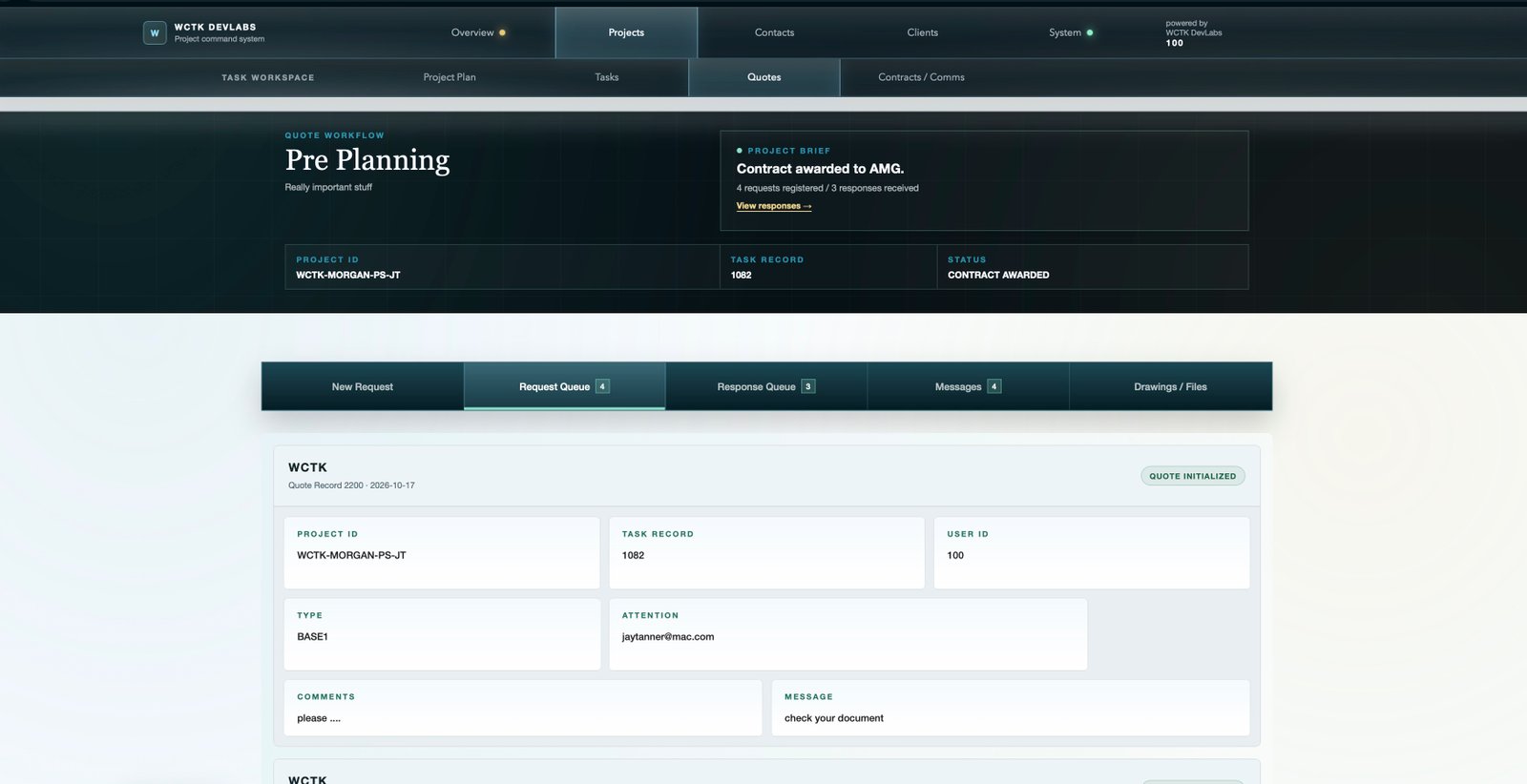
Use Request Queue to review the requests associated with this task. Match the supplier and quote record before following up. The example below is quote 2200; other screenshots show quote 2192.
Open Messages for the quote conversation. Select the intended Quote Recipient, choose the message type, enter a clear subject and message, and attach supporting material when needed. Use the existing record's Reply link when continuing that discussion.
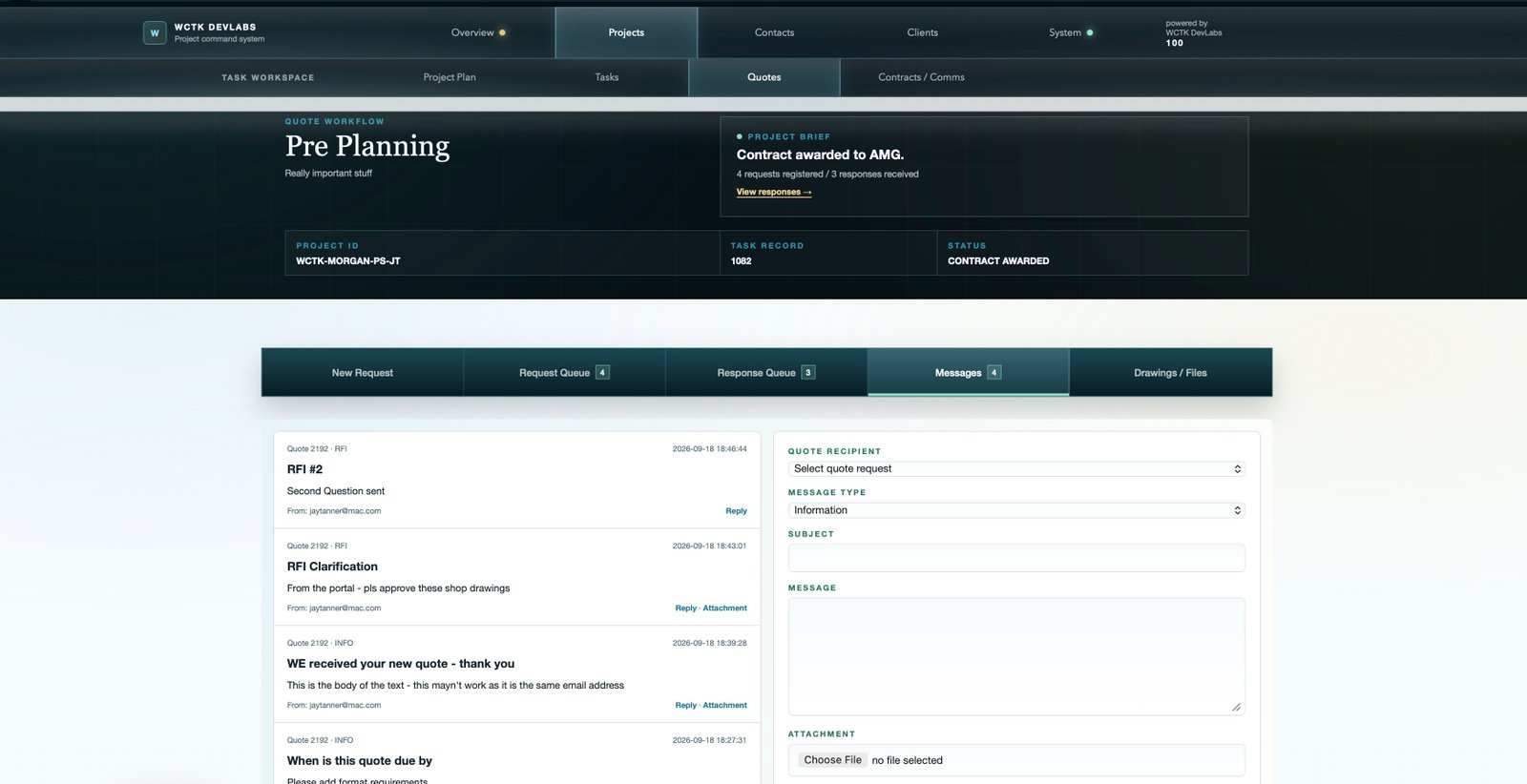
Queue and message counts are record totals in these captures. Do not assume that every counted item is new, unread or awaiting approval.
Supplier / Quote portal
Review the package and respond
The supplier follows the portal link provided with the request. Check the task and quote record first, then work through the scope, files and response. These screens show the supplier's side of the same process.
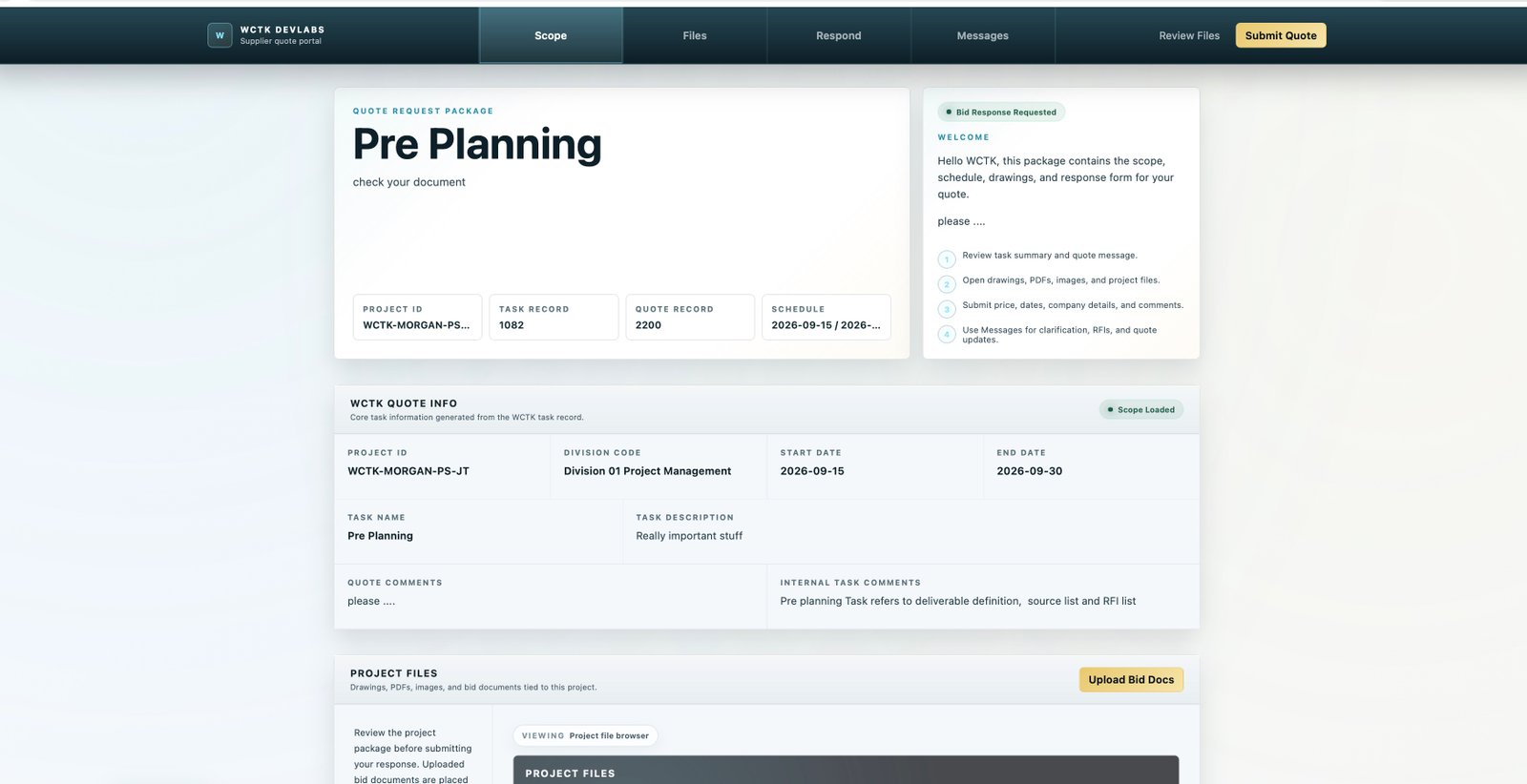
Read before pricing
Review the requested work and dates. Open the supporting documents before deciding what is included in the price.
Resolve ambiguity
Use Messages for questions or an RFI. Record assumptions and exclusions explicitly instead of leaving the office to infer them from a price.
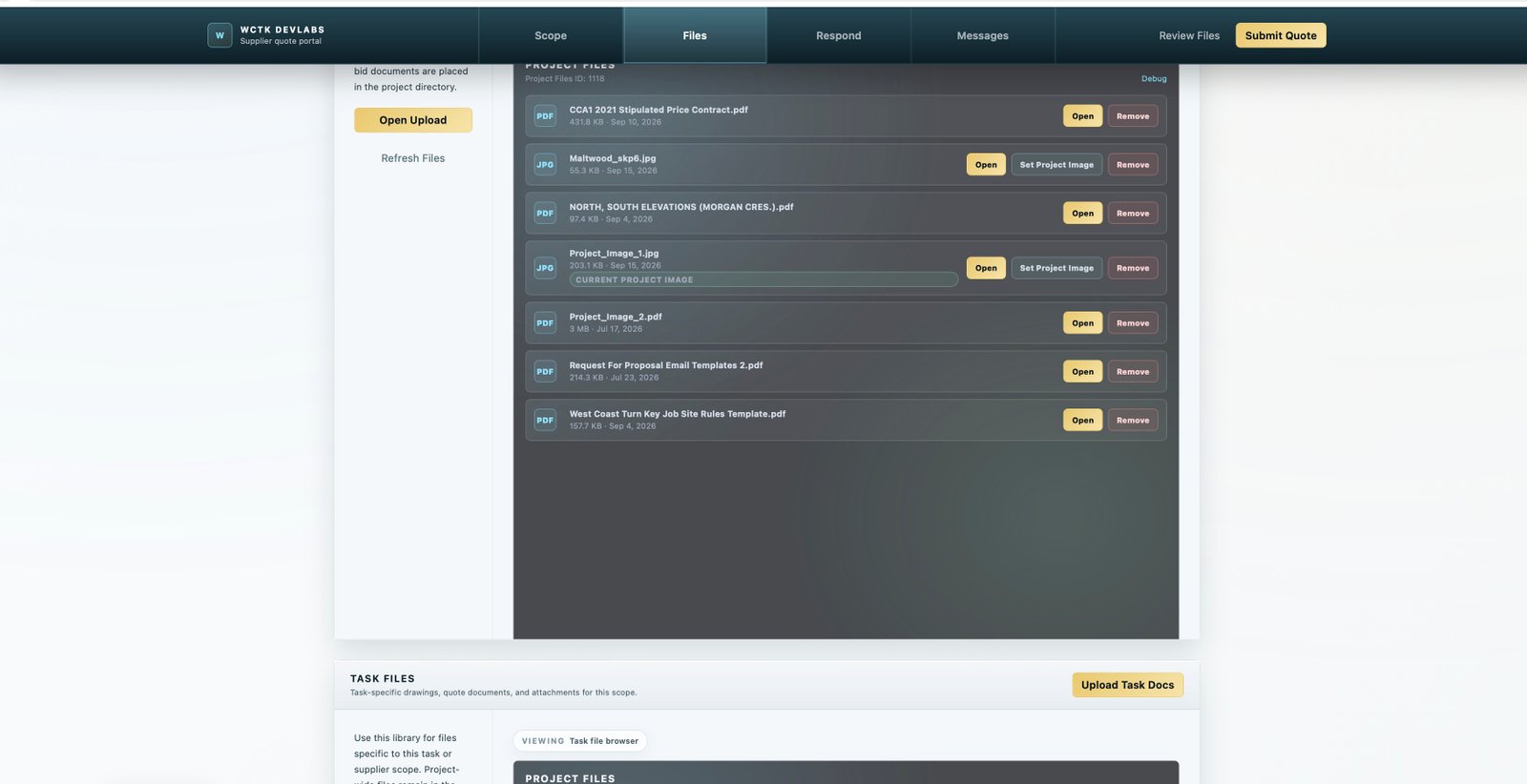
Open the relevant files
Check drawings, specifications and reference documents. The project and task libraries serve different scopes, even when reached from the same portal.
Attach the bid material
Use the appropriate upload control for supporting quote documents, then refresh the list and confirm the file appears. The controls shown reflect this demo configuration.
Opening or uploading a document does not submit the quote response. Complete the response form and check its submission result separately.
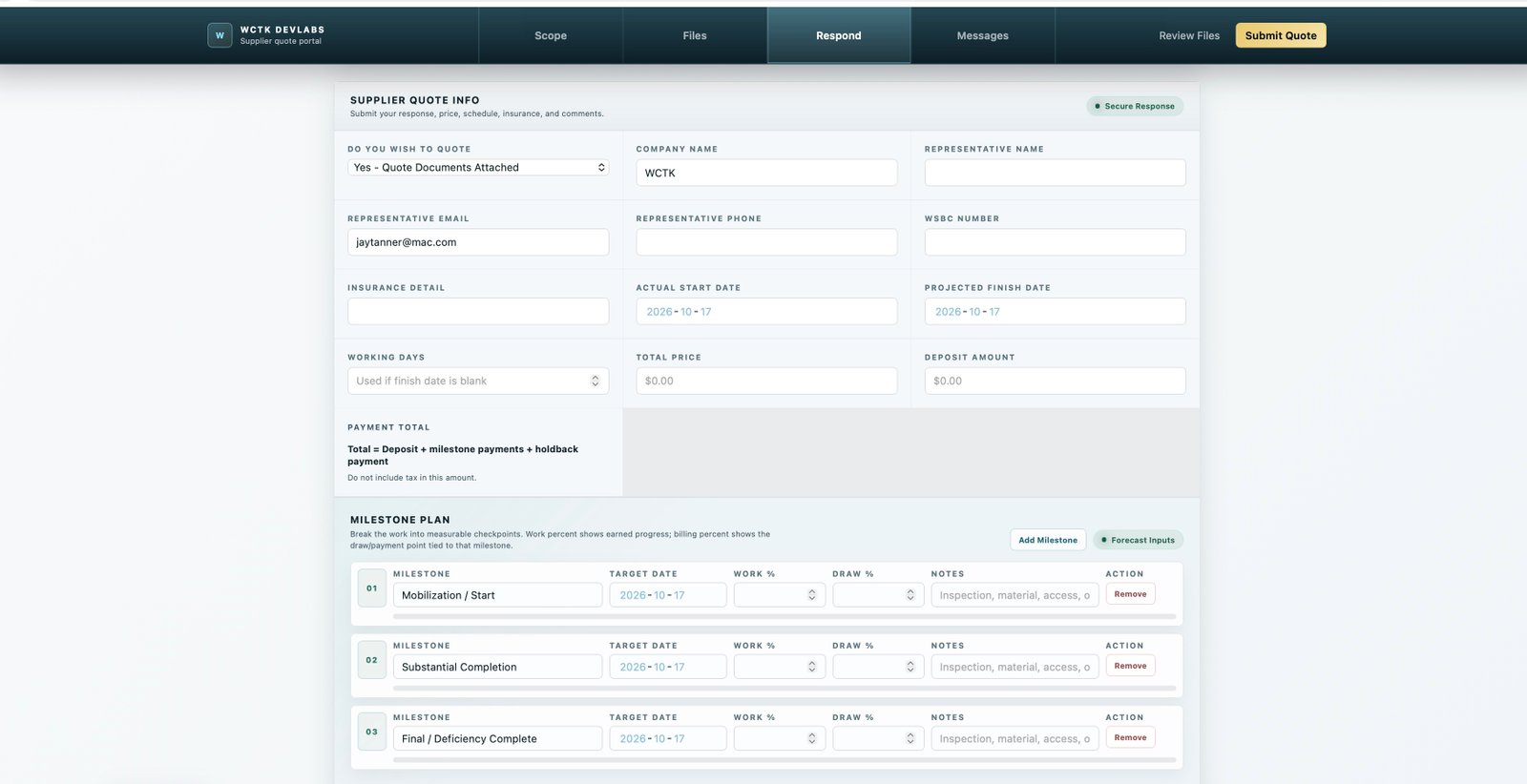
- Identify the supplierReview the quote intention, company, representative and contact details, plus the requested insurance and WSBC information.
- Price and scheduleEnter the proposed dates, total price and deposit. Follow the form's instruction to exclude tax from the payment total.
- Define milestonesName each checkpoint, target date, work completion level, proposed draw and supporting notes.
- Work %
- The level of work completion represented by that checkpoint. It is not the same as the payment percentage.
- Draw %
- The proposed payment portion associated with that milestone. Check the complete payment plan, including deposit and holdback, so amounts are not counted twice.
A proposed milestone plan is for review. Entering a milestone or submitting a quote does not mean the office has approved it.
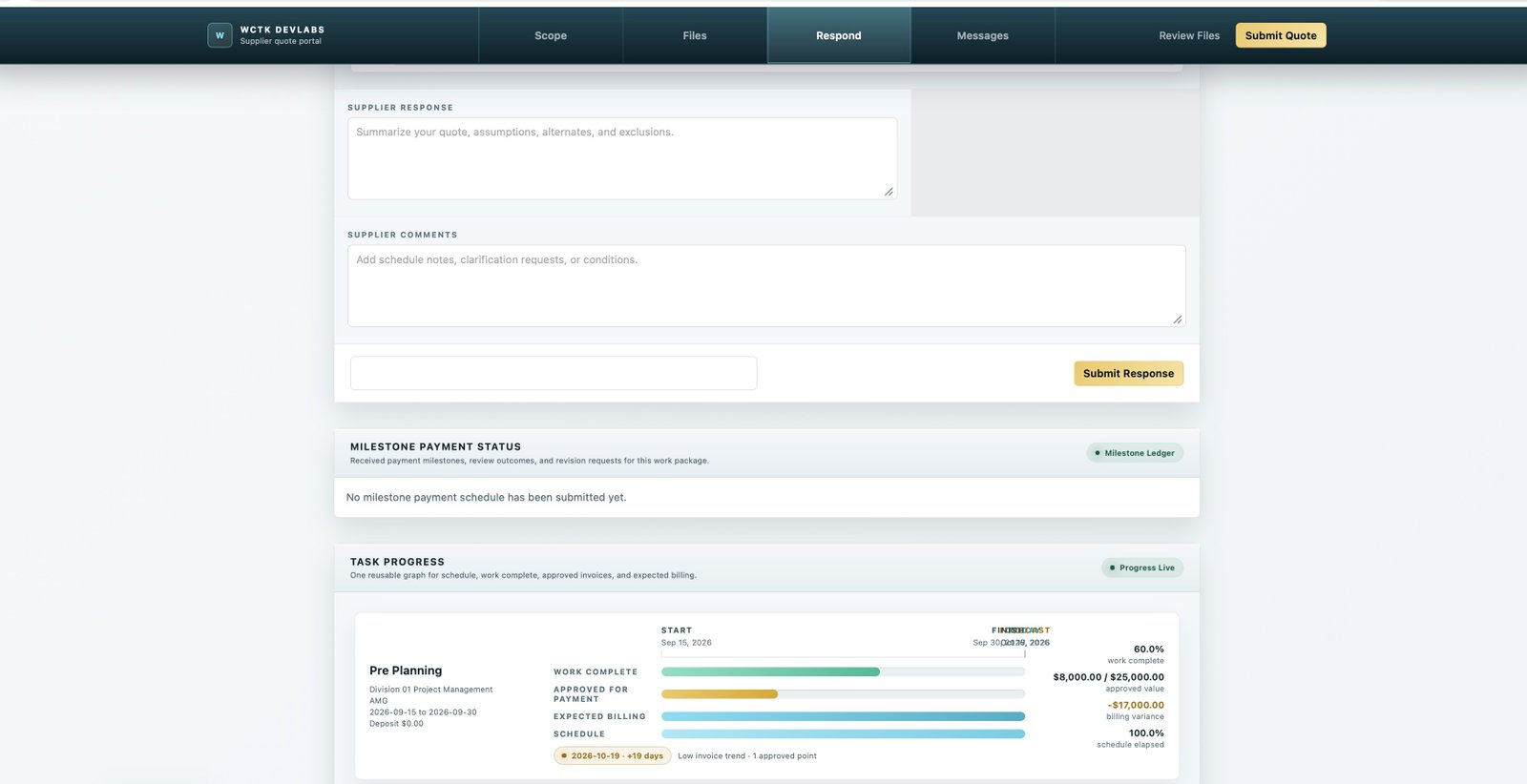
Summarize the quote, assumptions, alternates and exclusions in Supplier Response. Add schedule conditions or clarification notes in Supplier Comments. Review the details, select Submit Response, and wait for the returned result before leaving.
Confirm submission
Read the confirmation or error beside the submission area. If the result is unclear, check whether a response was recorded before submitting again.
Read progress separately
The graph compares recorded work, approved value, expected billing and elapsed schedule. It is not proof that this new quote was accepted or that a payment was made.
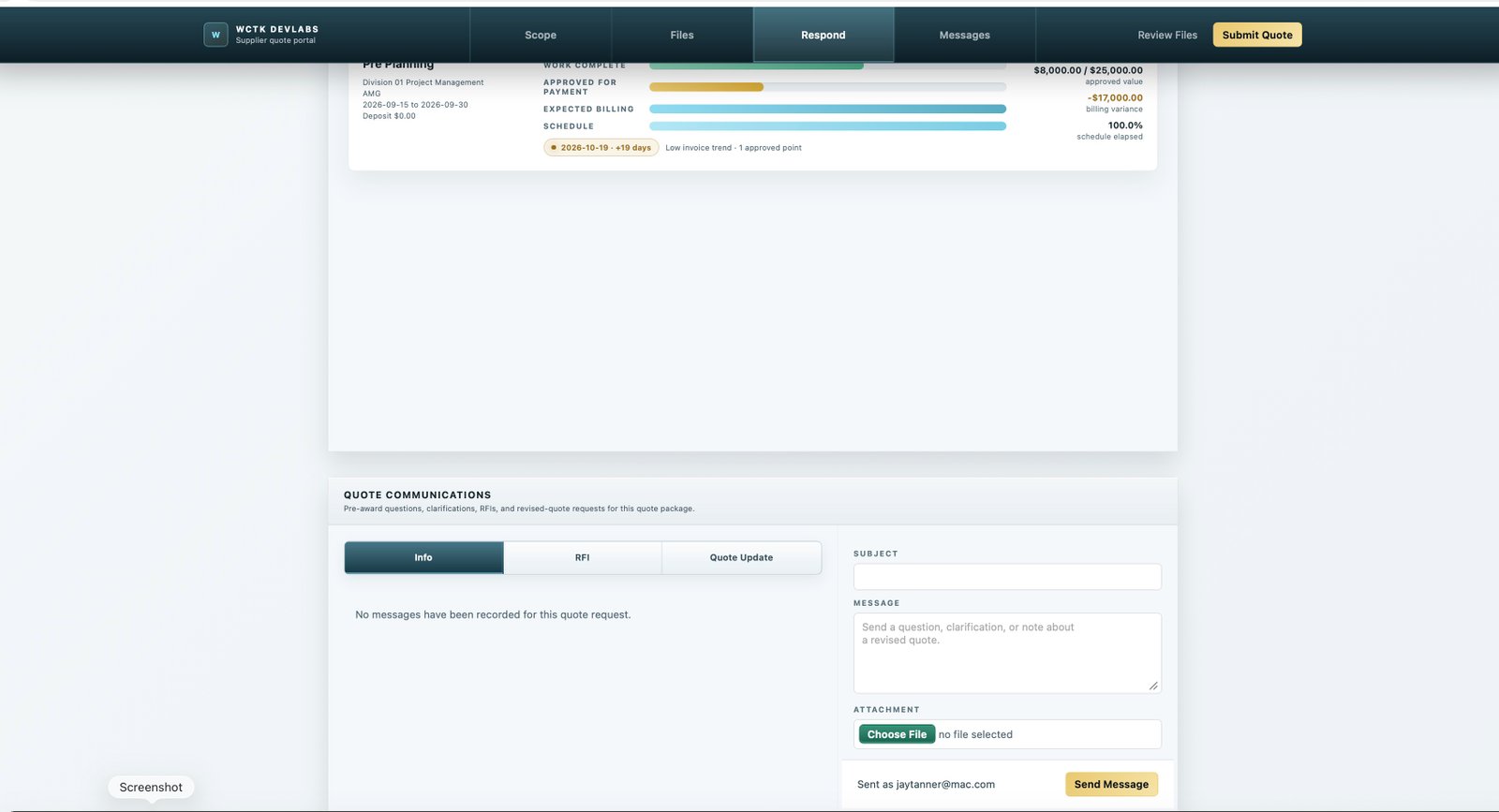
- Info
- General information about the requested work.
- RFI
- A question requiring clarification before proceeding.
- Quote Update
- A discussion about a revised quote. State what has changed and attach supporting detail where appropriate.
A message is not the same as submitting the response form or awarding a contract. Confirm any changes to price and schedule through the relevant review workflow.
Office / Response Queue
Review before awarding
Return to Quotes > Response Queue. Review the supplier's response, price, deposit, contact details, schedule and supporting files. Compare the offered scope with the original request and resolve outstanding questions.
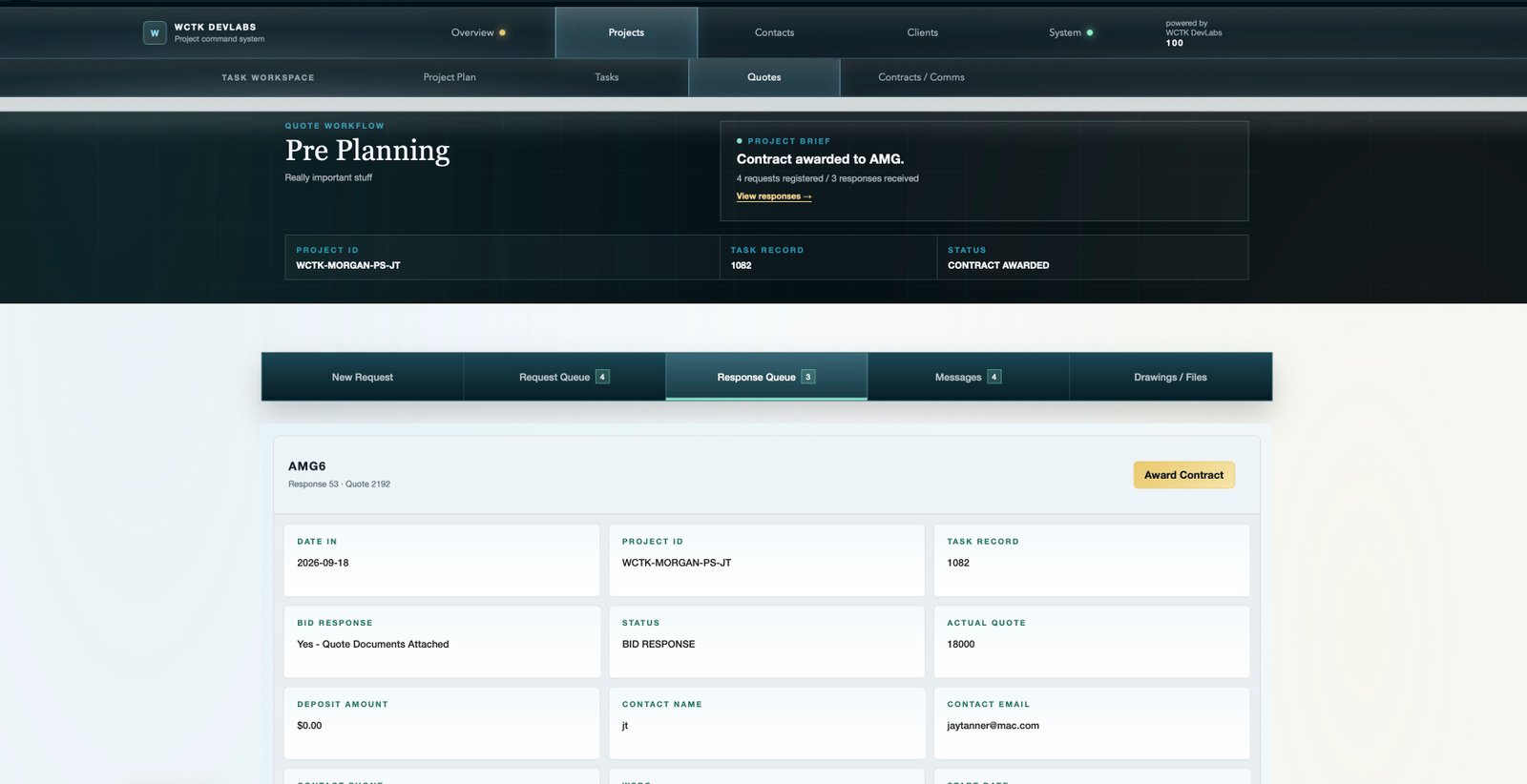
Match the record
This example is response 53 against quote 2192. The portal example used quote 2200. Always check the identifiers and supplier before taking an award action.
Make an intentional award
Use Award Contract only for the selected, reviewed response and with the appropriate authority. Read the resulting confirmation and verify the contract record in Contracts / Comms.
The demo task header already reports an award. Do not award another response merely to follow this guide. Review the existing contract or use an approved test record.
Office / Contracts / Comms
Review milestones and invoice records
Open Contracts / Comms for the task and confirm the intended contract. The submenu separates Contract, Info, RFI and Invoice. The supplied example below shows the Invoice view for Demo and Clean up, a different task from Pre Planning.
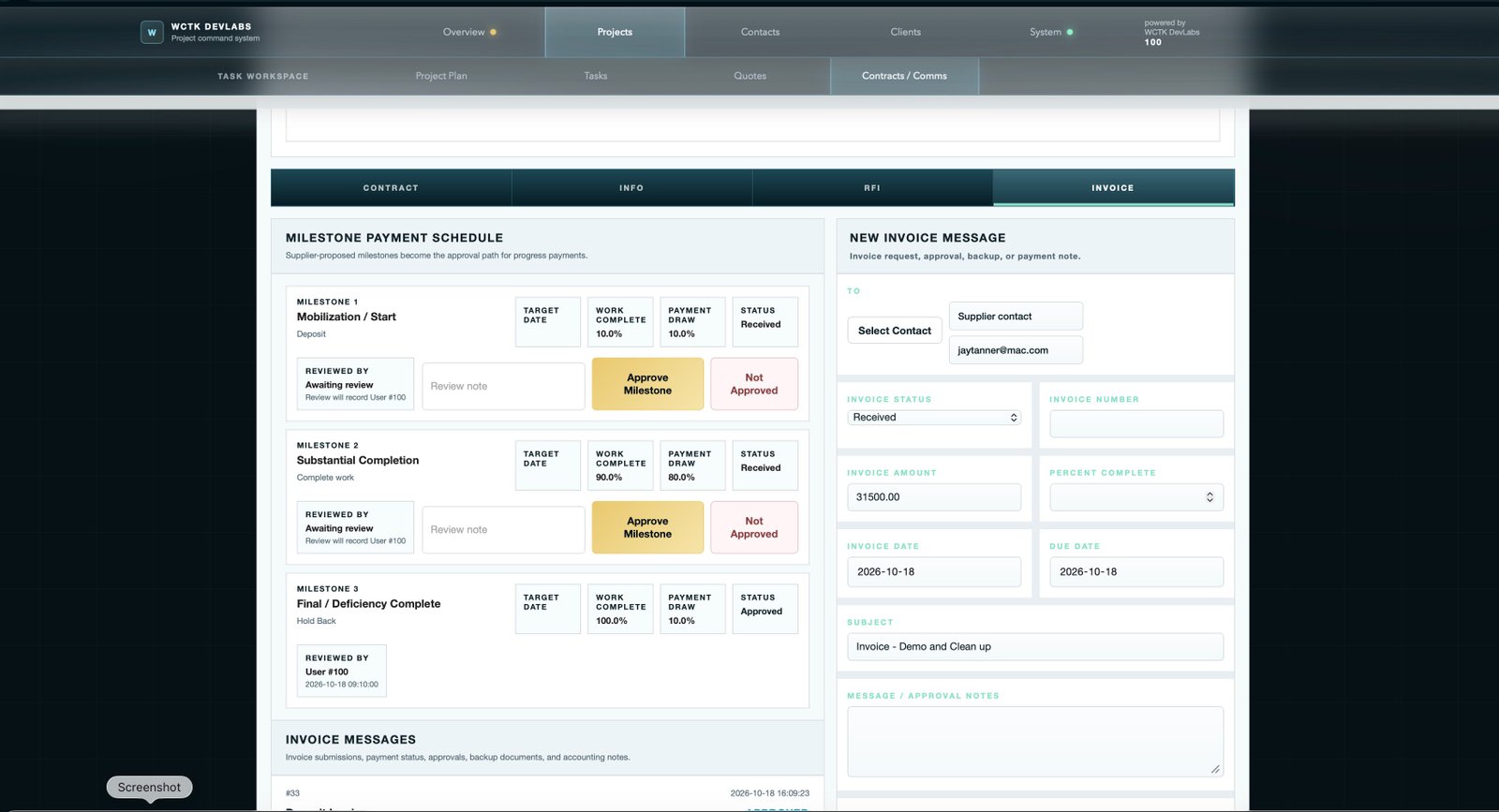
- Review the checkpointCheck the milestone, work completion level, payment draw, target date and any evidence supporting the request.
- Record the decisionAdd a review note and use Approve Milestone or Not Approved as appropriate. Check the recorded reviewer and outcome.
- Record the invoiceCheck the recipient, invoice status, number, amount, percent complete, dates and notes before submitting the invoice message.
Received is not approved
The first two milestones show Received and Awaiting review. The third shows Approved with a reviewer and timestamp. Read each milestone's own outcome.
Approval is not payment
A milestone decision, an invoice record and money actually paid are distinct. Do not infer payment from the approval badge or work-complete percentage.
Keep the records connected
A quick reference
- Request Queue
- Who was asked to quote, and the request instructions.
- Supplier portal
- The supplier's view of the scope, files, response form and quote conversation.
- Response Queue
- The returned supplier proposals to review before an award.
- Contracts / Comms
- The contract context and its information, RFI and invoice records.
- Milestone status
- The review outcome for one checkpoint, not the task's commercial or progress status.
- Progress graph
- Compare work, billing and time; do not treat one measure as proof of another.
Try it in the demo
Locate task 1082, identify a request and its supplier, then compare the scope and files with the corresponding response. Review the contract milestone history without creating another award or approval.
Back to the beginning ↑