TaskEngine / Getting work underway
Tasks & project plans
Follow a task from the project schedule to its documents and progress record.
TaskEngine is the software. These screenshots show WCTK's demo workspace, so customer branding and project names remain visible.
Start here
Sign in to TaskEngine
Enter your account email and password on the Secure Login screen, then select Sign In. Use the Projects item in the main navigation to reach the project register.
- EmailUse the email associated with your TaskEngine account.
- PasswordEnter your password privately. Never include it in shared screenshots or messages.
- Sign InContinue to the system, then open Projects.
This tutorial is a guide, not a login form. Enter credentials only on your actual TaskEngine sign-in page.
Project register
Choose your project
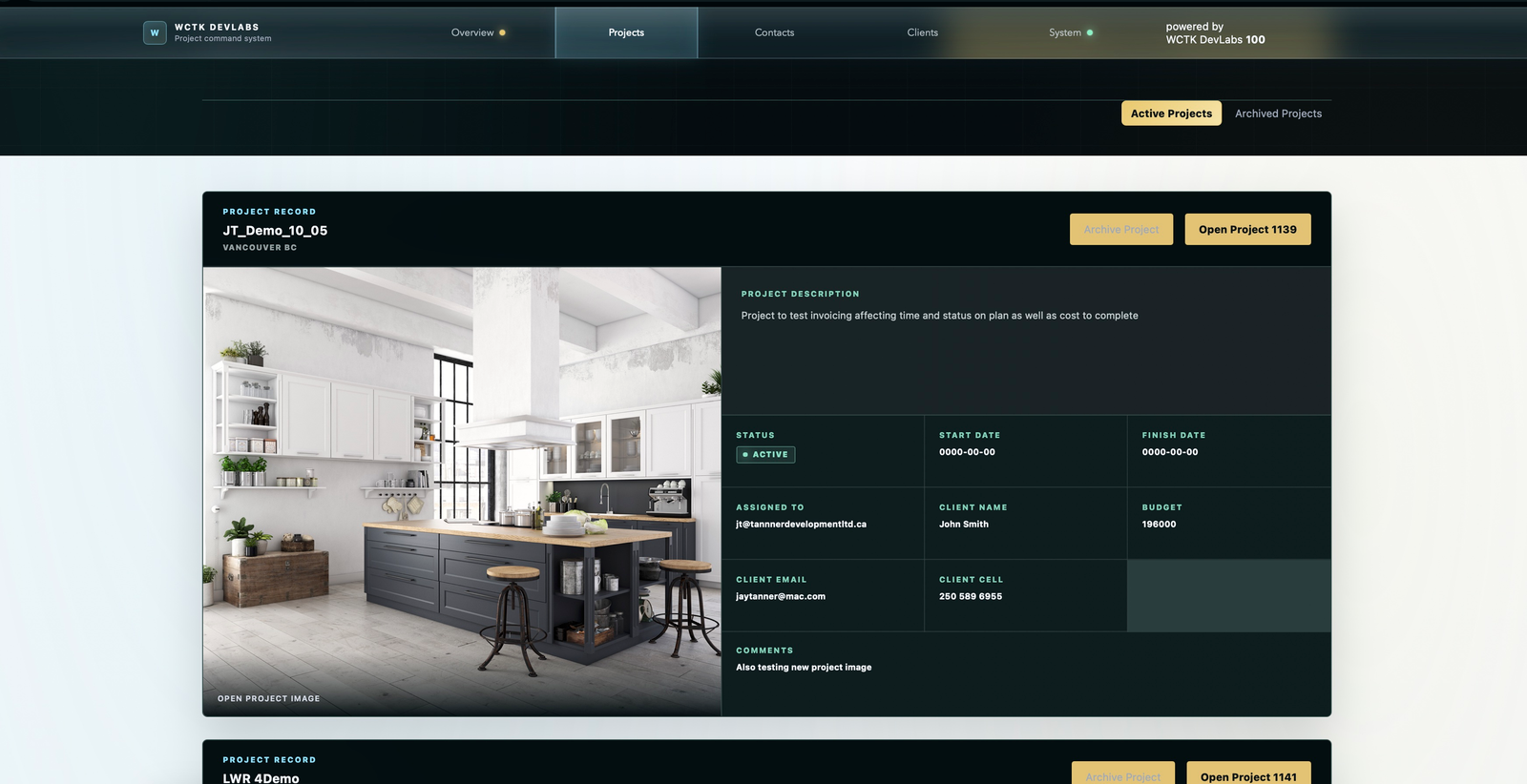
Start in Active Projects. Review the project name, location, description and client details, then select its Open Project button. For this walkthrough, choose project 1118: WCTK-MORGAN-PS-JT.
Find the right record
The project number identifies the record. Confirm the project name before opening it.
Active versus archived
Archived projects are kept separately from the active list. Archiving preserves the project rather than deleting its history.
Project workspace
Read the delivery plan
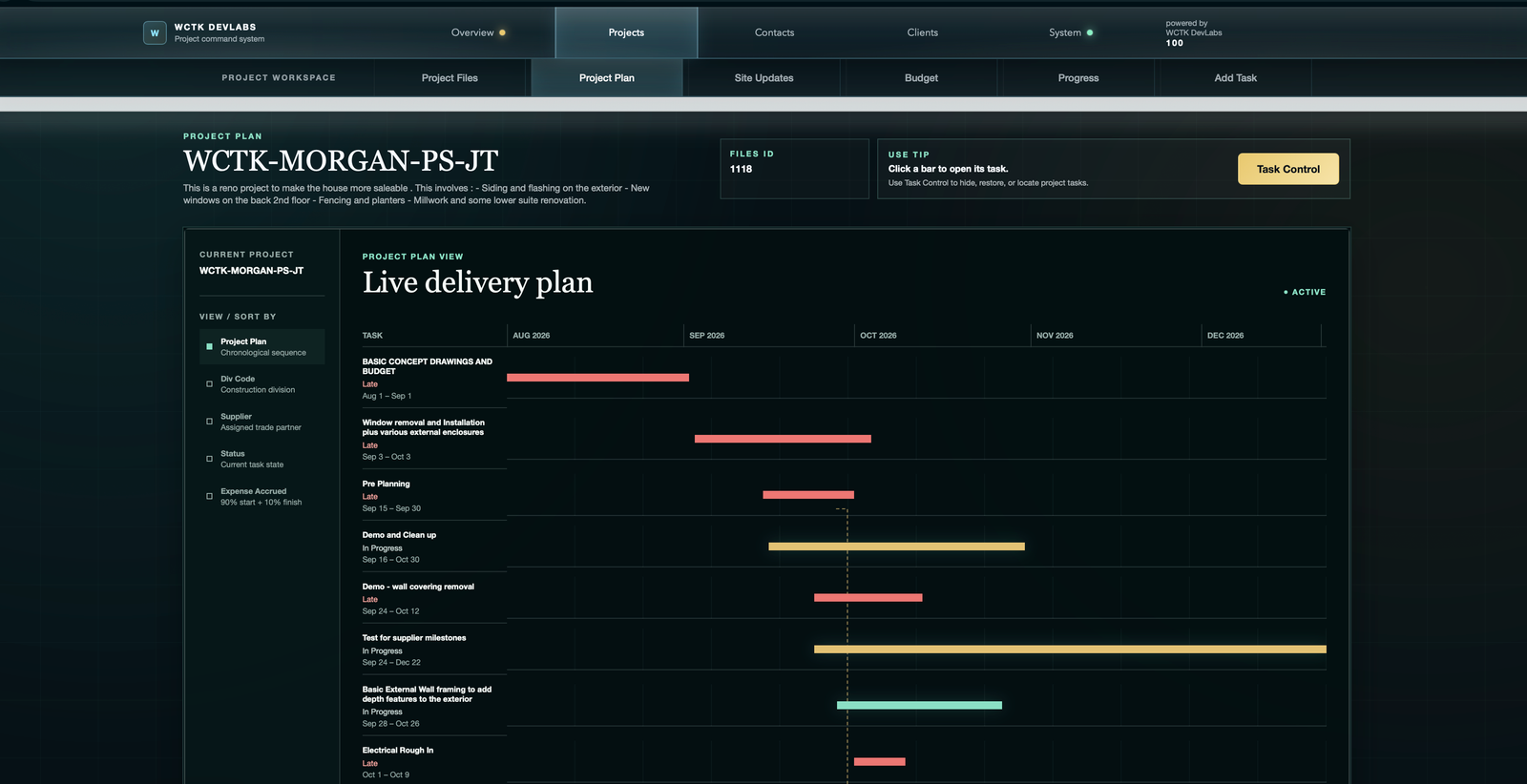
Select Project Plan. Each row represents a task; its bar places that task on the project timeline. Select a bar to open the task record.
Read dates and status
A solid red bar means the task is late. A red outline means it is at risk because a linked prerequisite is late. The label beside the task states its progress status.
Follow dependencies
Risk follows Start After Parent Finishes links, including downstream links. Manual-date links do not propagate that risk. A warning does not automatically reschedule work.
Change the view
Use the left selector to organize by plan, division, supplier or status. Expense Accrued opens a separate financial view.
The internal plan's normal mint and gold bars alternate by row; they are not separate progress statuses. Use the status text and red warnings to interpret health.
Task 1082 / Pre Planning
Work inside the task
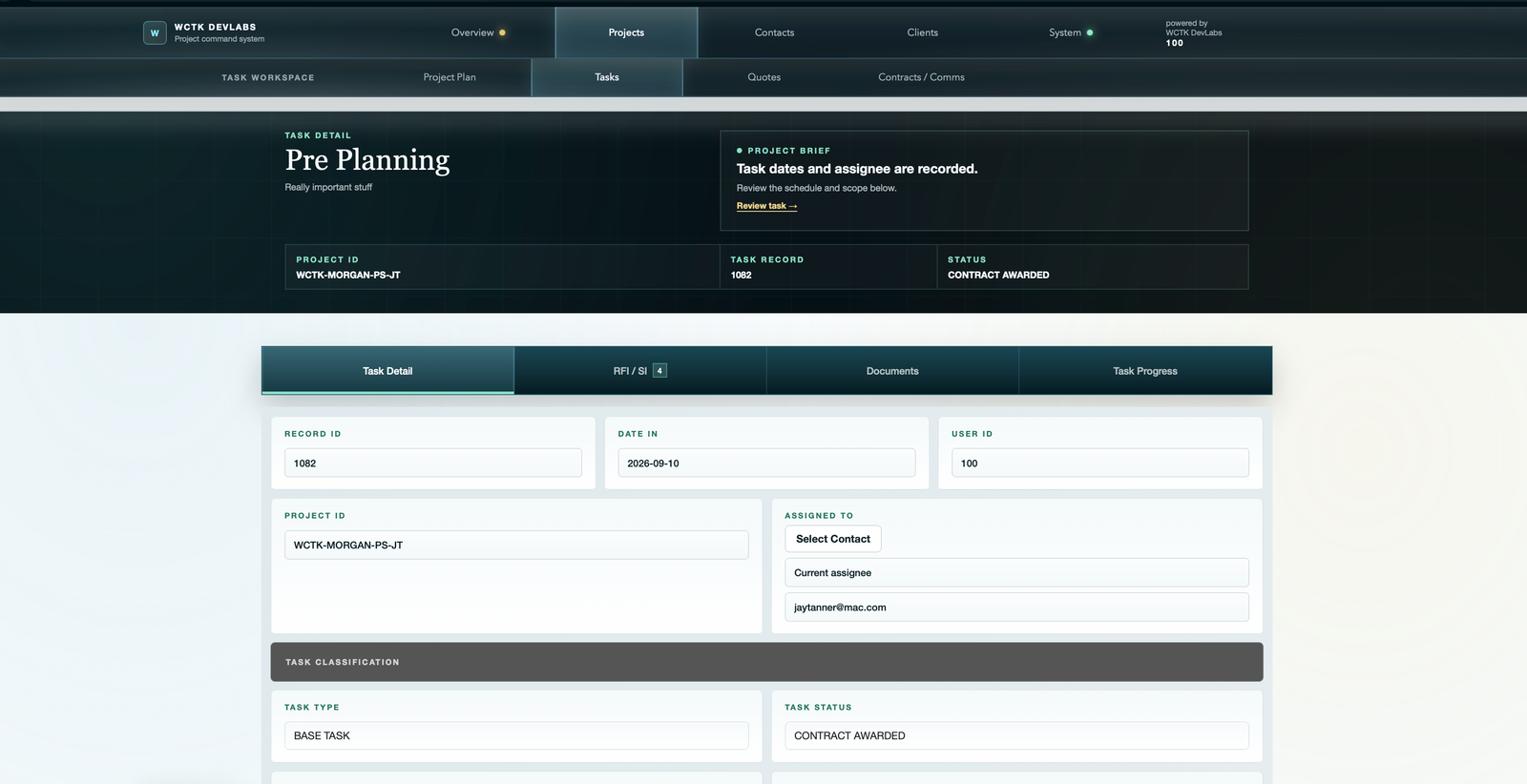
The task workspace brings the record, questions, documents and progress together. Explore the same tabs you see in the app.
Check the Project Brief
The brief draws attention to relevant information. In this example, task dates and an assignee are recorded. Continue into the task to review its scope and schedule.
Keep statuses distinct
Contract Awarded describes the commercial workflow. It does not mean the work is complete. Progress Status separately describes Not Started, In Progress, Complete or Late.
Questions and site instructions stay with the task
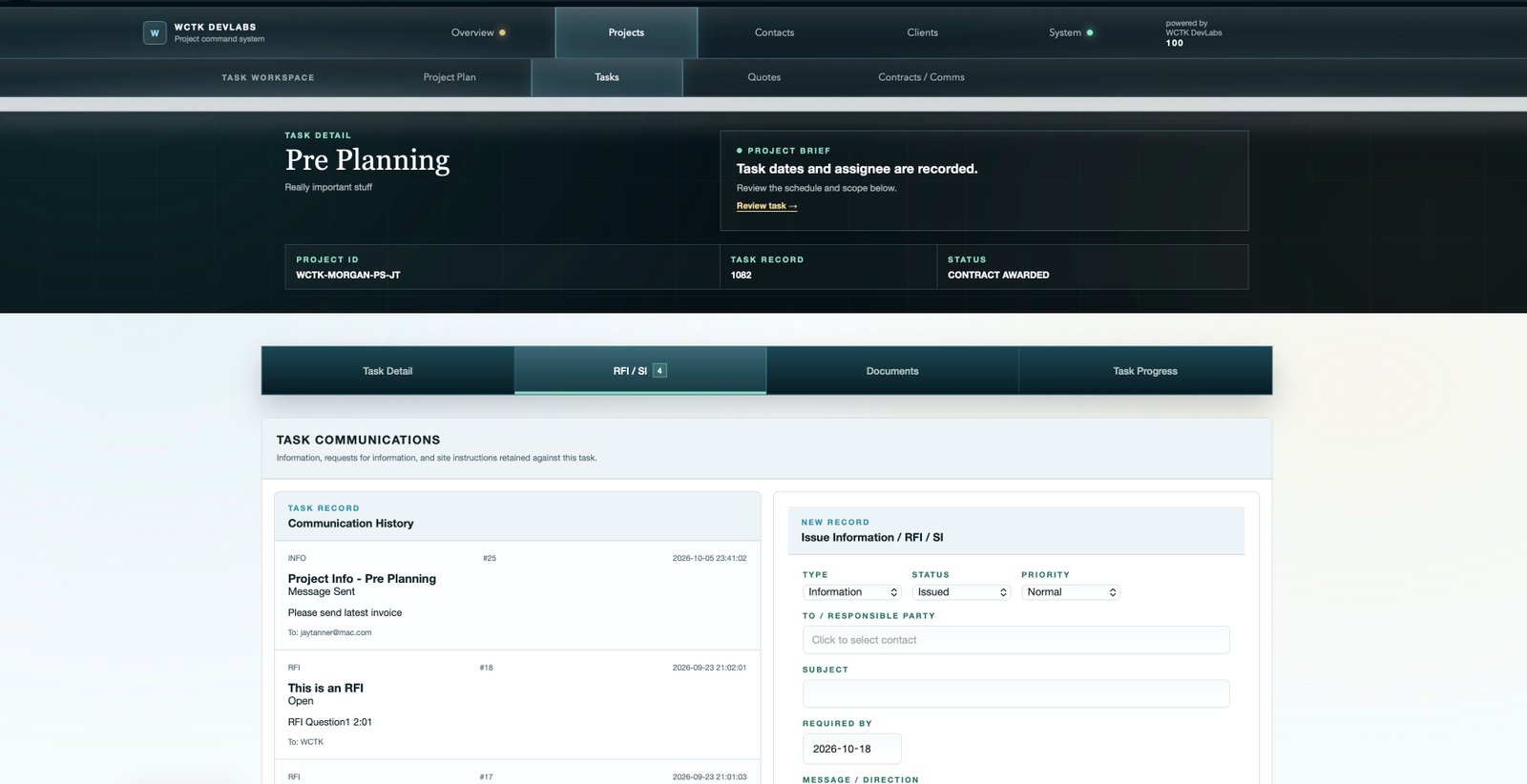
Select RFI / SI in the task submenu. Keep the question or instruction linked to the relevant work package so someone returning to the task can understand its context.
- RFI Request for Information
- A question or clarification needed to carry out the work.
- SI Site Instruction
- An instruction relating to the work on site.
The task screenshot shows an RFI / SI count of 4. A record count is not, by itself, a count of unread messages.
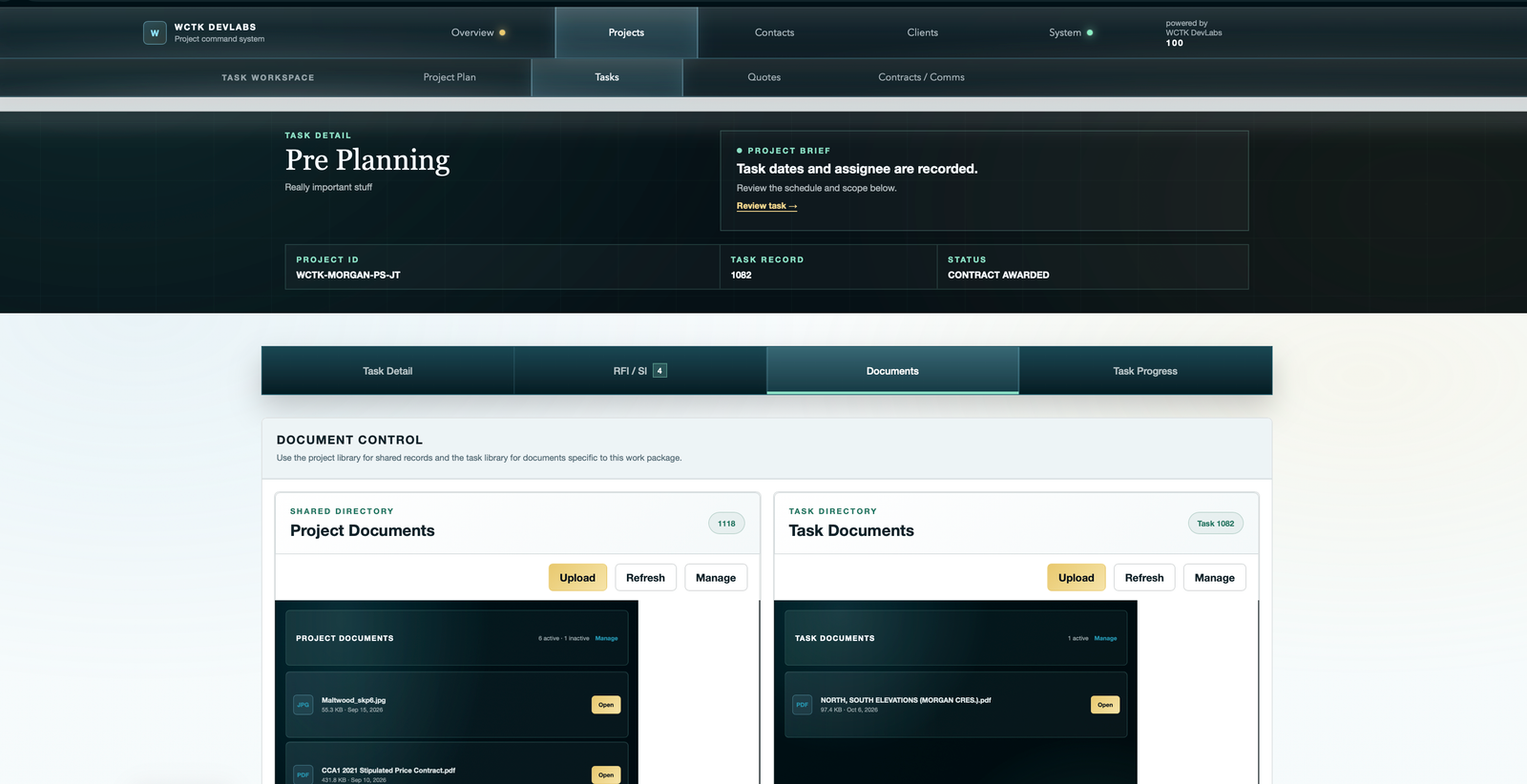
Project Documents
Use the shared library for plans and reference material relevant across the project. This example uses project directory 1118.
Task Documents
Use the task library for files specific to this work package. Here, the elevations PDF belongs to task 1082.
- Upload
- Add a file to the chosen library. Check whether it belongs to the project or the task first.
- Refresh
- Reload the library list after a change.
- Manage
- Review and manage file records, including active and inactive status.
- Open
- View the selected document.
Client visibility: supported active files from both libraries appear in the client portal. No separate publishing step is required. Inactive library files are excluded.
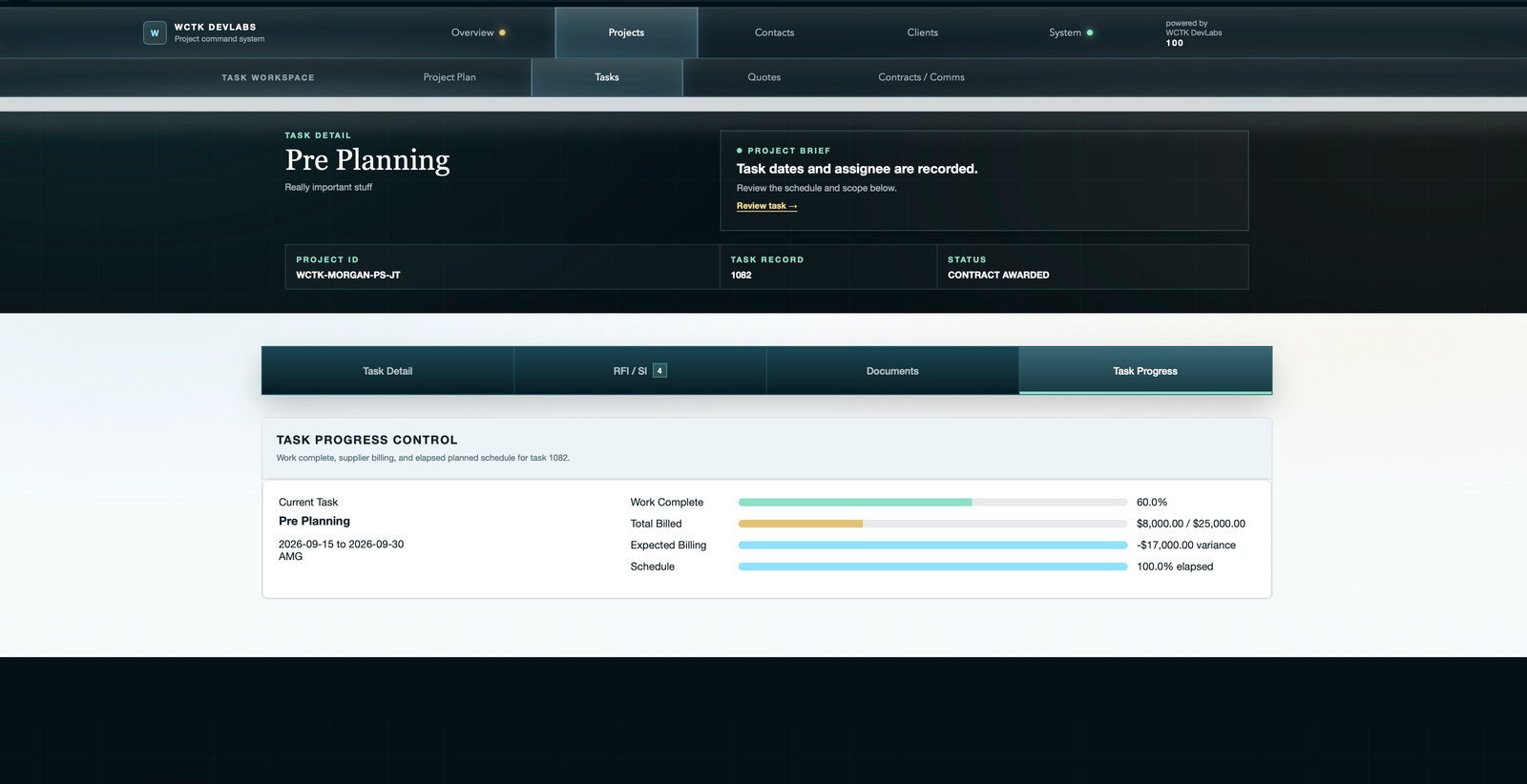
Spot the schedule gap
The example has used its planned time but records only 60% completion. Review the remaining work, dates and task communications. Passing the finish date does not prove completion.
Separate actual and expected billing
Total Billed records billing against the task value. Expected Billing is a forecast comparison; its variance is not the same as an unpaid balance or an approval to pay.
Keep the distinctions clear
A quick reference
- Status
- The task's commercial workflow: Task Initialized, Quote Requested, Quote Received or Contract Awarded.
- Progress Status
- Not Started, In Progress, Complete or Late. The Gantt surfaces lateness and linked schedule risk.
- Percent complete
- A recorded measure of work completion, not a date-based assumption.
- Percent billed
- A billing measure. It is separate from work completion and elapsed time.
- Project / task files
- Choose the library by scope. Active supported files are available to the client portal.
Try it in the demo
Open project 1118, select Pre Planning, locate its task document and compare work complete with schedule elapsed.
Back to the beginning ↑